Read the complaints behind the website-accessibility lawsuits and a pattern shows up fast. The plaintiff almost never says "your homepage looked wrong." They say they couldn't do something — couldn't check out, couldn't log in, couldn't submit a request — because a form didn't work with their screen reader. Forms are where browsing turns into a transaction, and they're where accessibility either holds up or quietly fails. That makes them the single highest-leverage thing to get right, whether your concern is an Ontario compliance deadline or a cross-border claim.
Key facts
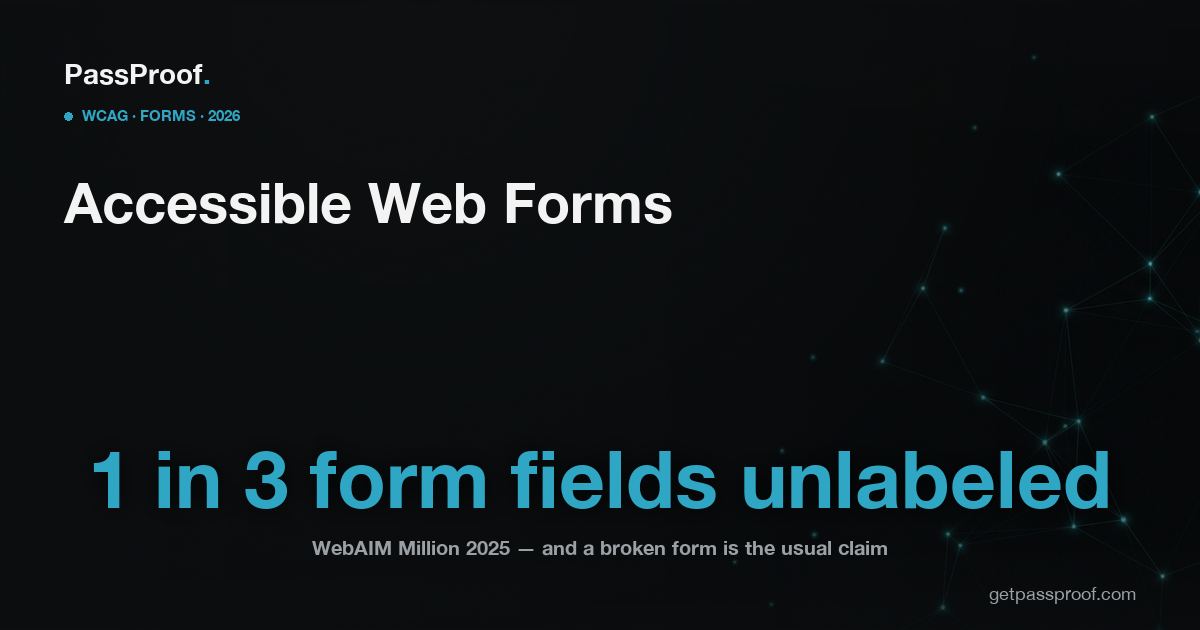
- In the WebAIM Million 2025 analysis of the top one million home pages, 34.2% of form inputs were not properly labeled — meaning a screen reader can't reliably tell the user what the field is for.
- Missing form-input labels were the third most common WCAG failure, present on 48.2% of home pages; overall, 94.8% of home pages had detected WCAG 2 failures, averaging 51 errors and 6.3 form inputs each (WebAIM).
- WCAG 2.2 (a W3C Recommendation since October 2023) added nine success criteria; three hit forms directly: 2.5.8 Target Size (Minimum) — interactive targets at least 24×24 CSS pixels (Level AA), 3.3.7 Redundant Entry (Level A), and 3.3.8 Accessible Authentication (Level AA).
- Ontario's IASR (Integrated Accessibility Standards Regulation) requires public websites at organizations with 50+ employees to meet WCAG (Web Content Accessibility Guidelines) 2.0 Level AA by December 31, 2026 — a baseline that already includes the core form criteria below.
- The AODA (Accessibility for Ontarians with Disabilities Act) has no private right of action, so the provincial routes are the compliance-report process and an HRTO (Human Rights Tribunal of Ontario) complaint — but ADA (Americans with Disabilities Act) exposure is live for any Ontario business that sells to US customers.
Which WCAG rules does a form actually have to meet?
Most of the work is unglamorous and already part of the WCAG 2.0 AA baseline the IASR points to. Every input needs a programmatically associated label, not just placeholder text that vanishes when you start typing (1.3.1 Info and Relationships, 3.3.2 Labels or Instructions). When a custom control — a styled dropdown, a date picker, a "select" built from <div>s — is exposed to assistive technology, it has to announce its name, role, and current value (4.1.2 Name, Role, Value). And the help text or instructions a sighted user relies on must be available to a screen-reader user too.
Errors are the other half. If a field is rejected, the form has to say which one and why in text, not just turn a border red (3.3.1 Error Identification), and where it can, suggest the fix (3.3.3 Error Suggestion). For anything legal, financial, or that changes user data, submissions must be reversible, checkable, or confirmable (3.3.4 Error Prevention). WCAG 2.2 then adds the modern touches: don't force users to re-enter information they already gave you in the same process (3.3.7 Redundant Entry), don't gate login behind a cognitive puzzle with no accessible alternative (3.3.8 Accessible Authentication), and make tap targets big enough to hit (2.5.8 Target Size). One more — 1.3.5 Identify Input Purpose, the rule behind proper autocomplete on name/email/address fields — is Level AA but arrived in WCAG 2.1, so it sits just above the IASR's 2.0 floor and is squarely best practice rather than the strict provincial minimum.
Why do a third of forms still fail?
Because the failures are invisible to the person who built the page. A developer using a mouse and a working pair of eyes sails through a checkout that's completely unusable with a keyboard or a screen reader — the placeholder looks like a label, the red border looks like an error message, the custom dropdown looks fine. WebAIM's number isn't an exotic edge case; it's a third of all inputs on the most-visited sites in the world. This is also why a bolt-on overlay widget doesn't solve it: an overlay can't reliably know that a given <input> collects a postal code, what its error condition is, or how to announce a hand-rolled date picker — and sites running overlays are still being sued over exactly these flows. The fix lives in the form's own markup, which is why source-code remediation, not a script, is what holds up.
How do you find the form problems before a claim does?
An automated scanner is a fine first pass for the obvious half — it'll flag unlabeled inputs and empty buttons reliably. But the failures that actually break a checkout are interaction failures: tab order that skips the submit button, an error summary that never receives focus, a payment field that traps the keyboard. Those only surface when a human drives the form with a keyboard and a screen reader, which is the whole difference between a scan and a real audit. Prioritize the flows that carry money and obligation first — checkout, account creation, login, lead and contact forms — because that's where the lawsuits concentrate. Then fix at the source and keep dated evidence in an Accessibility Conformance Report (ACR). The same work closes your IASR gap before the December 31, 2026 deadline, so the budget does double duty.
See what an automated scan flags on your forms in about 30 seconds — free PassProof Report: getpassproof.com. It detects overlays, tells you what legally applies in Ontario, and shows where the real gaps are — no scare tactics, just the facts.
PassProof is a remote-first accessibility-engineering studio serving Ontario. General information, not legal advice.